
Umbraco Automate
What is Umbraco Automate and which processes can it automate?
From form submission to order confirmation, Automate connects events and actions inside the Umbraco backoffice. Editors gain a visual overview while developers configure integrations and boundaries.
The short answer
Umbraco Automate is an open-source automation module running within the Umbraco CMS environment. Visual flows combine triggers, actions and conditions, for example responding to a form submission, order or content change. Additional packages connect Forms, Commerce, Engage and AI, while developers can add custom actions and integrations. It goes beyond content approval alone and does not make external services free. Permissions, error handling, privacy and human review need deliberate configuration, especially when flows send data to external systems.
Key points
- Visual flows with triggers and actions.
- Add-on packages for DXP modules and external services.
- Runs in your environment; external data flows need explicit controls.
How does an automation work?
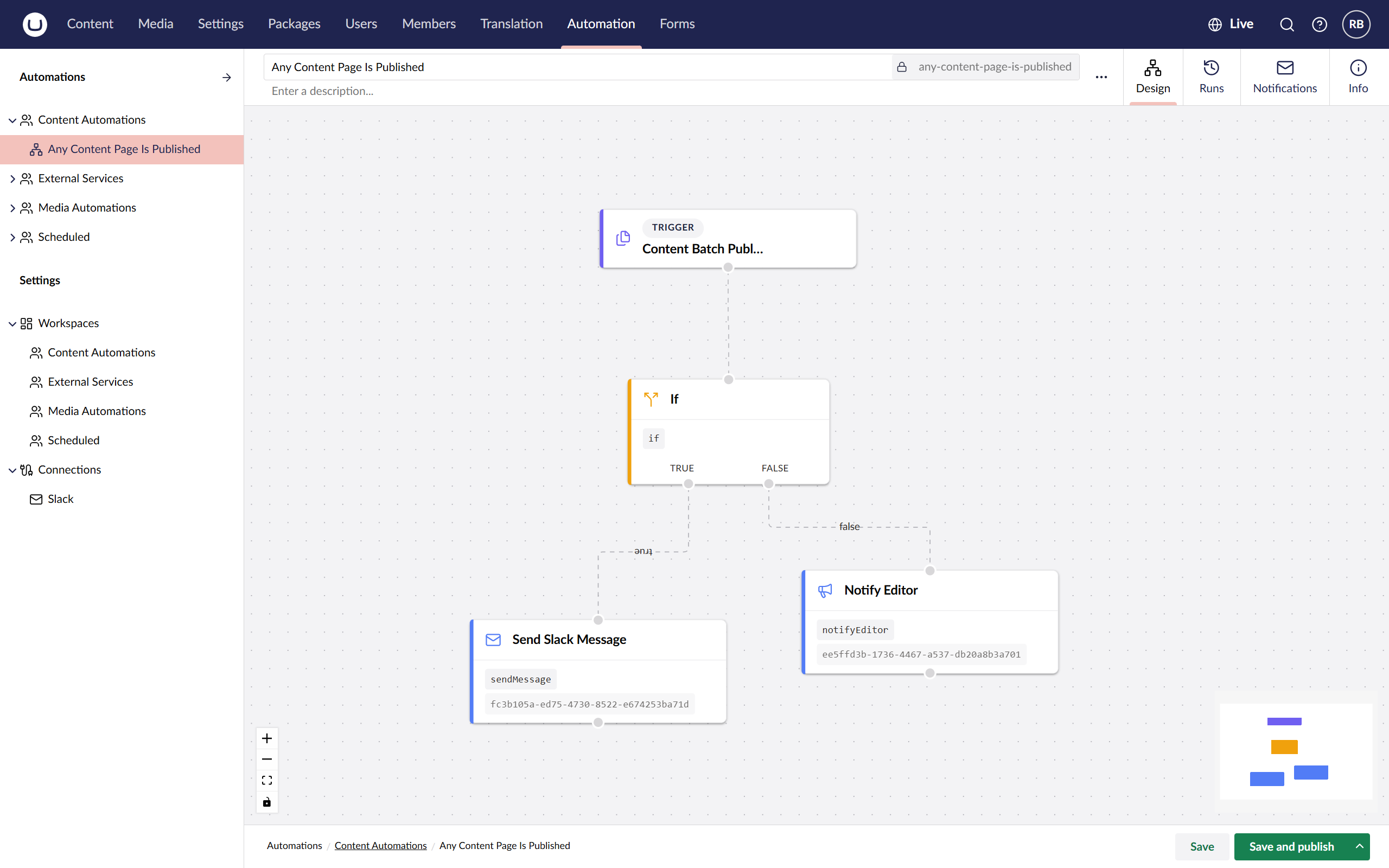
A trigger starts a flow. Actions perform tasks such as sending email or making an HTTP request. Bindings pass data between steps; conditions and branches determine the next action. Run history records step data, errors and timing. Visibility is valuable but requires policies for sensitive log data.
Overview: which processes are running and need attention?
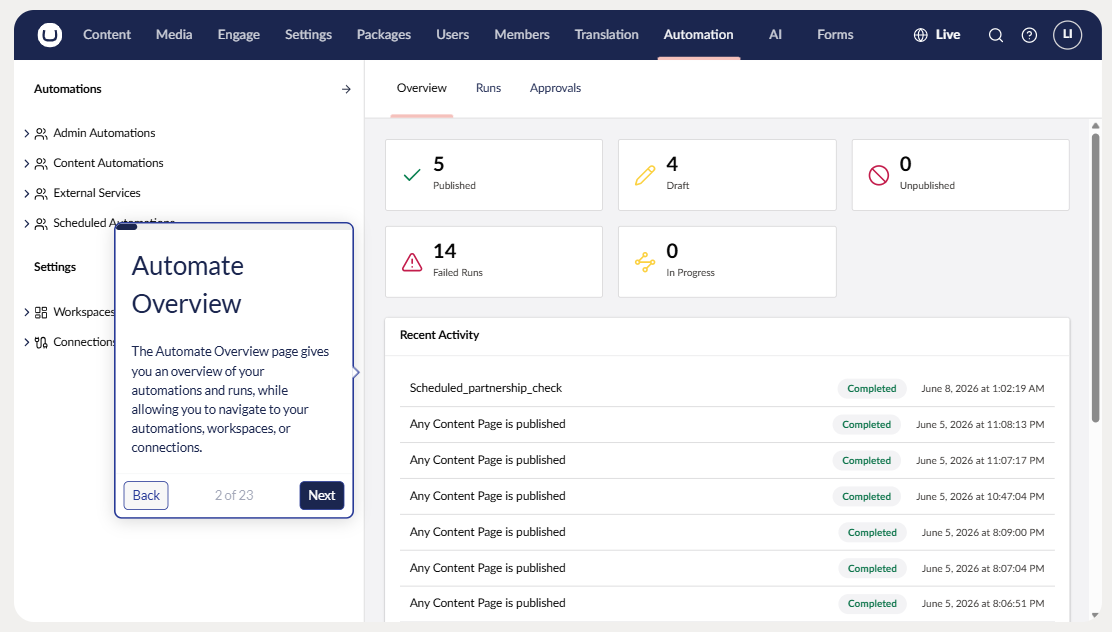
The overview brings together published automations, drafts, unpublished processes, failed runs and runs in progress. Recent Activity shows recent executions. This provides a starting point for checking what is active and which processes need investigation.
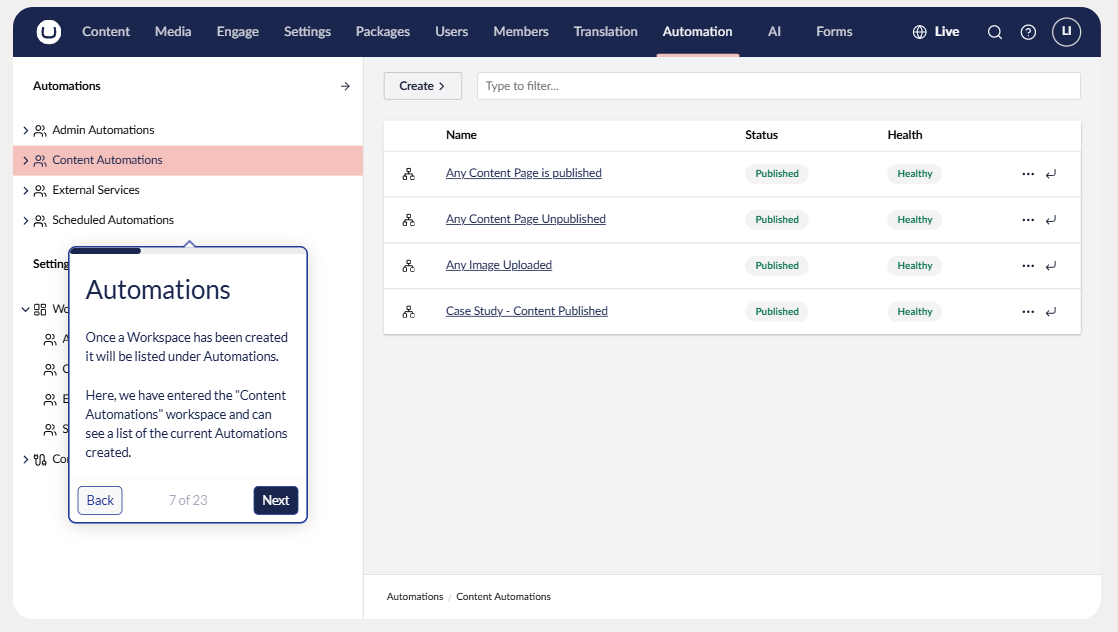
Inside a workspace, individual automations show their status and Health indicator. A published automation is not the same as a successful run: investigate run history and the relevant connections when problems arise.
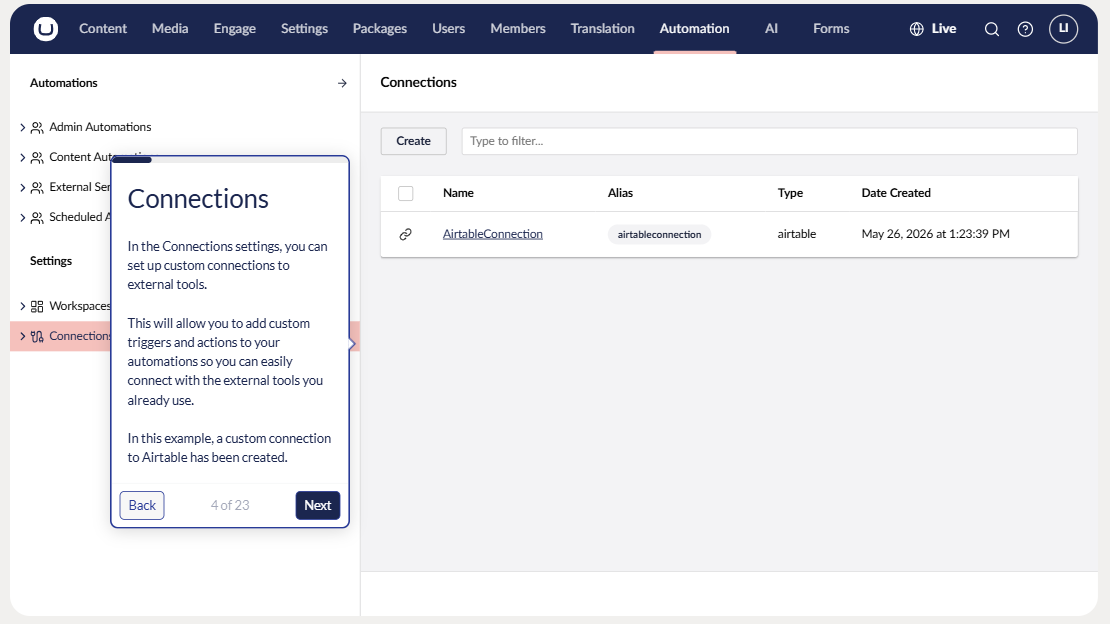
Connections: how do you link external services?
Connections manages links to external tools. This screen shows an Airtable connection with a name, alias and type. A connected service can become part of a flow when the required triggers and actions are available. This example does not imply automatic, configuration-free support for every service.
Decide which data will be sent, what access the service needs and who owns the connection. Review service fees and data-processing agreements too. Creating a connection does not by itself create a complete working business process.
Workspaces: how do you organise access and ownership?
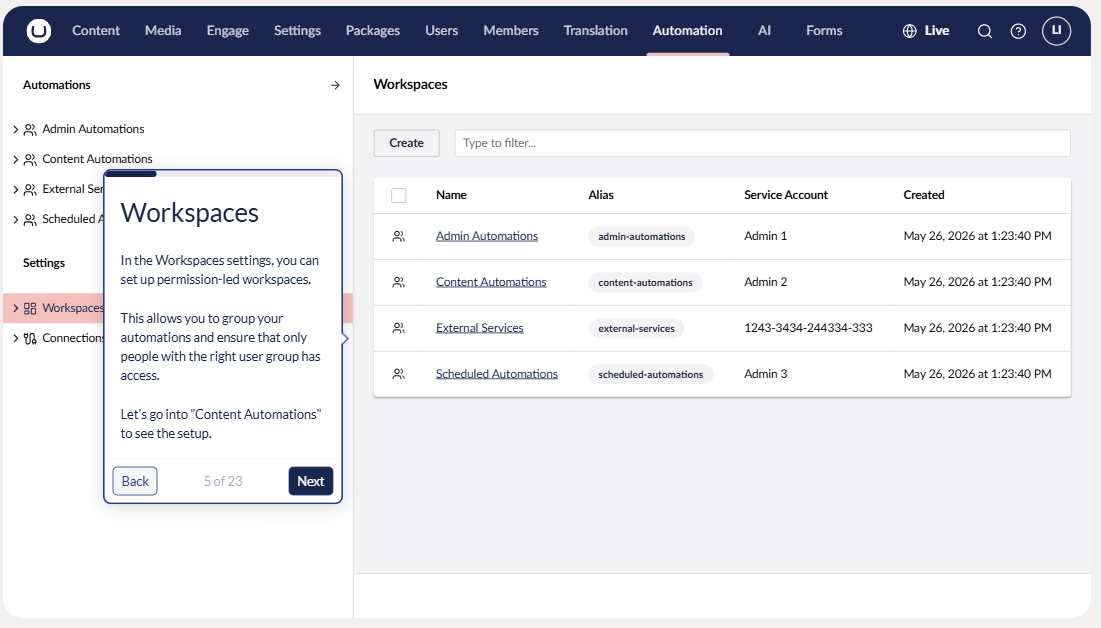
Workspaces groups automations. This example separates administration, content, external services and scheduled processes. It helps organise processes and access by user group.
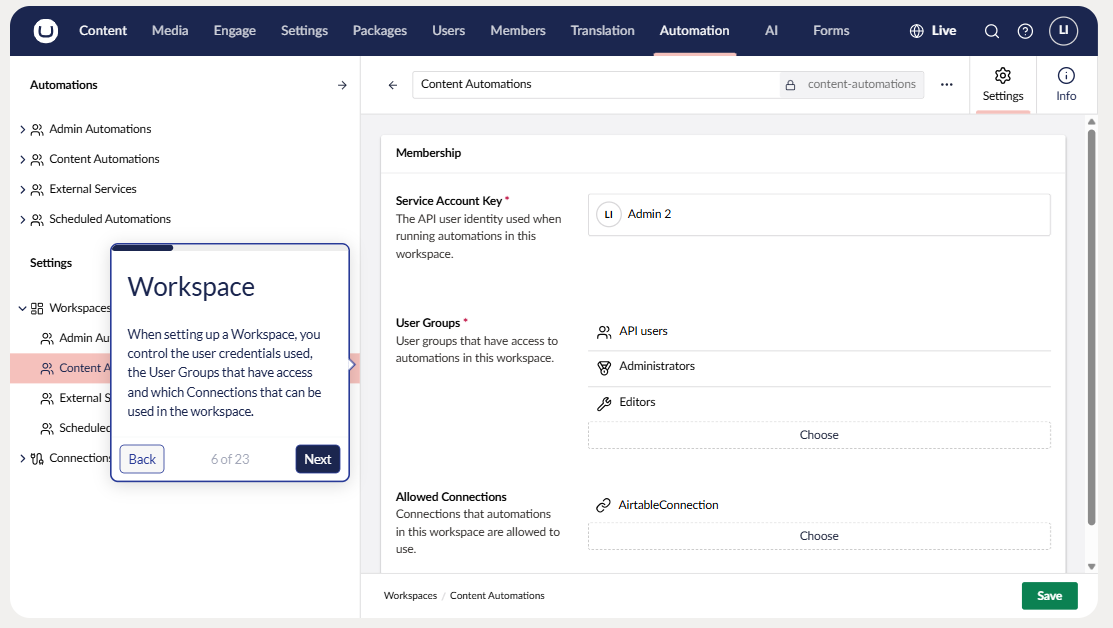
Within a workspace, configure the service account, user groups with access and allowed connections. The service account is the API user identity used to run automations in that workspace. Choose appropriately limited permissions and define ownership.
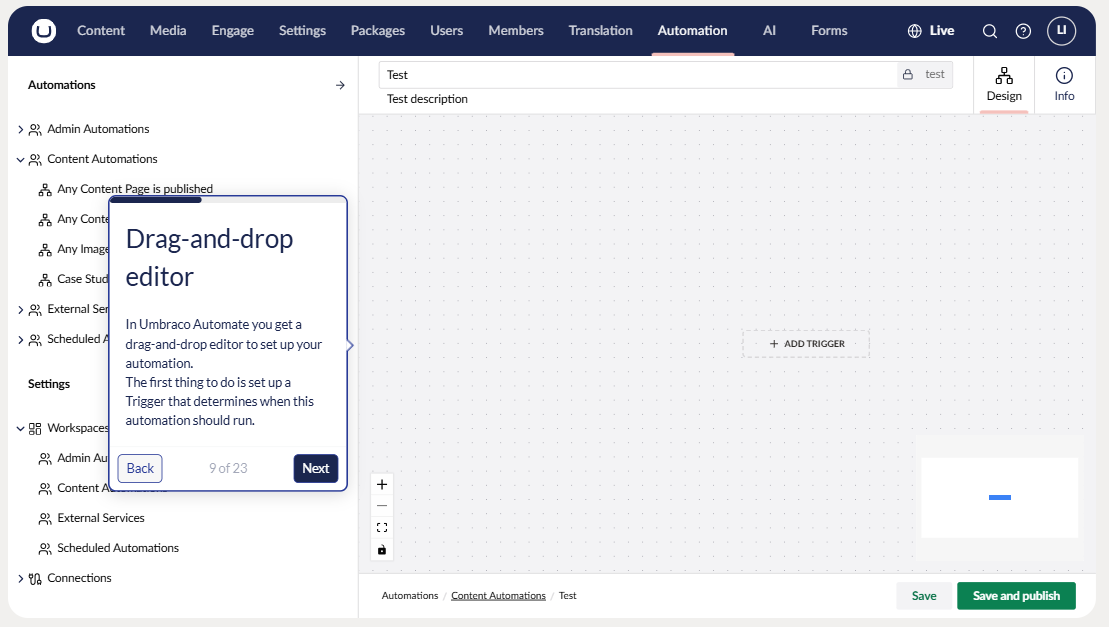
Designing a flow: from canvas to trigger and actions
The drag-and-drop editor lets you build a flow visually. Start with the event that initiates it, then add subsequent actions. The empty canvas shows Add Trigger; zoom and overview controls help with larger flows.
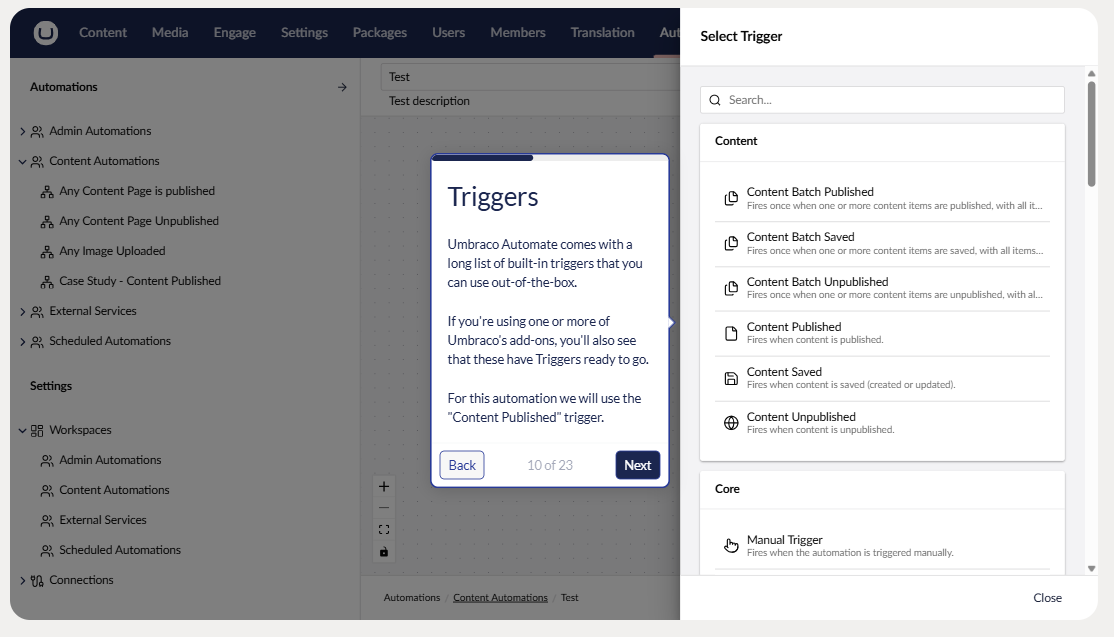
A trigger determines when the flow starts. The selection includes Content Published, Content Saved, Content Unpublished and batch variants, as well as a manual trigger. Additional Umbraco modules can add triggers; availability depends on the installation.
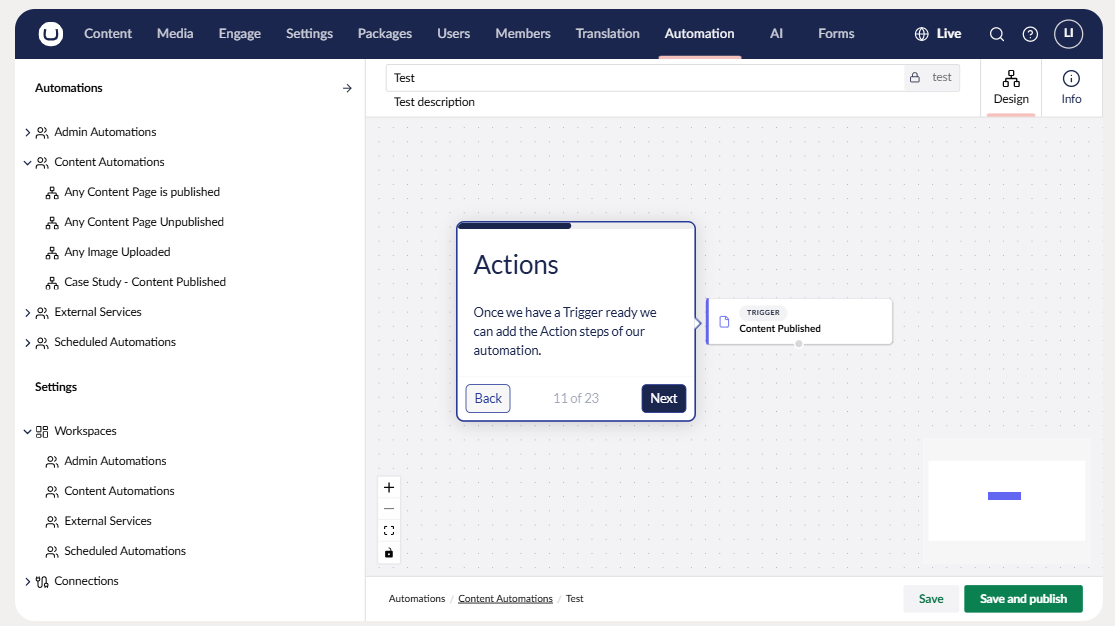
After placing the trigger, connect the required actions. The final screenshot shows the Content Published starting node without connected actions. A complete process also needs data passing, conditions and error handling, with its outcome tested before use.
Retrieving data: what does an action do after the trigger?
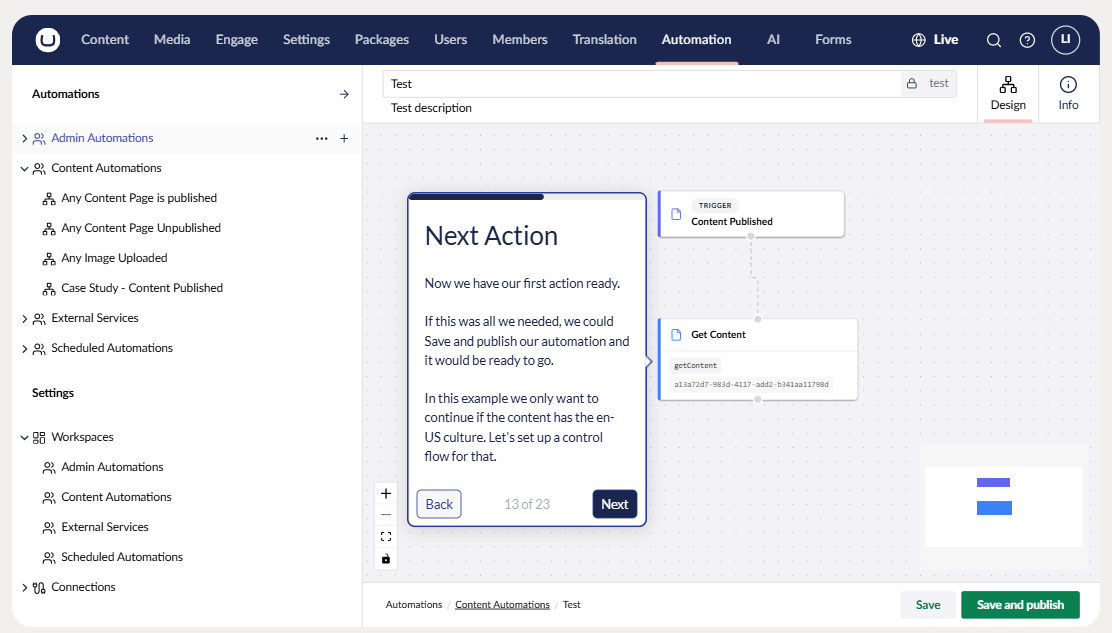
In the next stage of the example, Content Published connects to Get Content. The trigger reports a publication event; the action retrieves the published content item so subsequent steps can work with its content. The getContent alias gives the step a recognisable name within the flow.
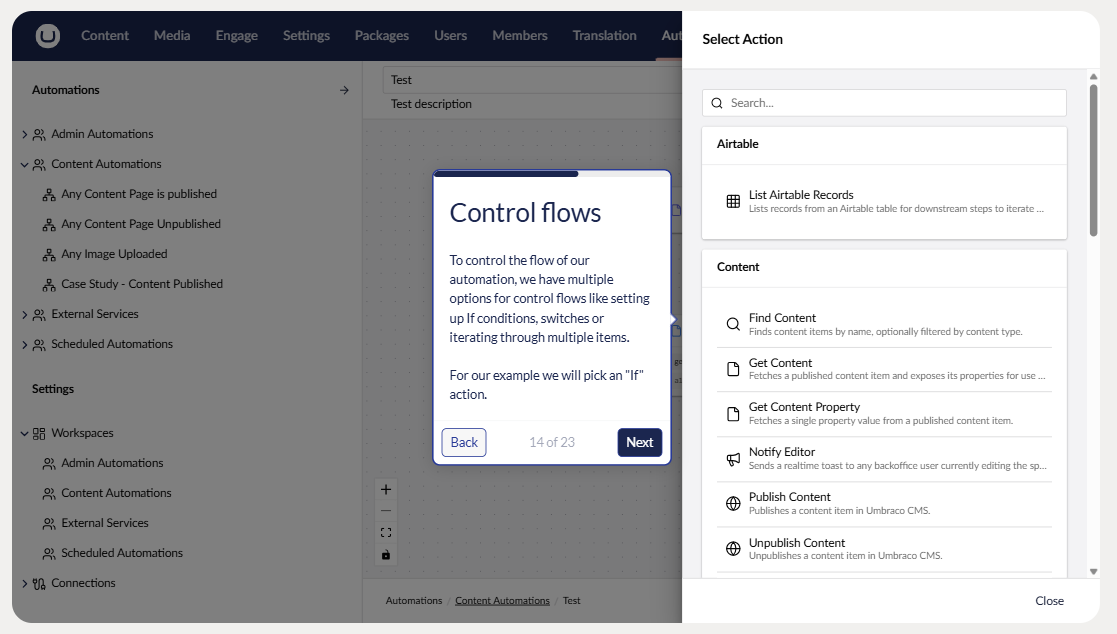
The action selector shows different tasks: Find Content searches for items, Get Content retrieves an item and Get Content Property reads one property. Notify Editor can display a message to an editor; Publish Content and Unpublish Content change publication status. List Airtable Records appears in a separate external-service category. Availability depends on packages, connections and permissions.
Conditions: how do you route different process paths?
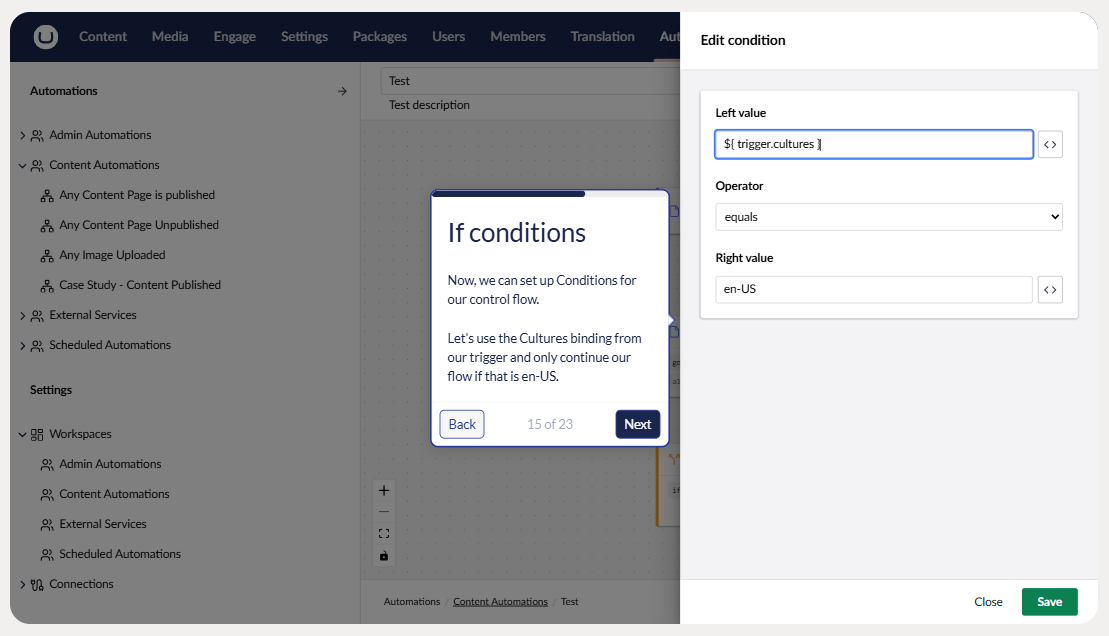
The condition editor contains a left value, operator and right value. In the example, the ${ trigger.cultures } binding is compared with en-US using equals. A binding references data from an earlier step, here the culture from the publication event. This makes subsequent actions conditional on context rather than running them every time.
The If step has two outputs: True and False. A matching result follows the True branch; the other result follows False if actions are connected there. This screenshot prepares approval on the True branch. It does not yet show a complete configuration of both paths.
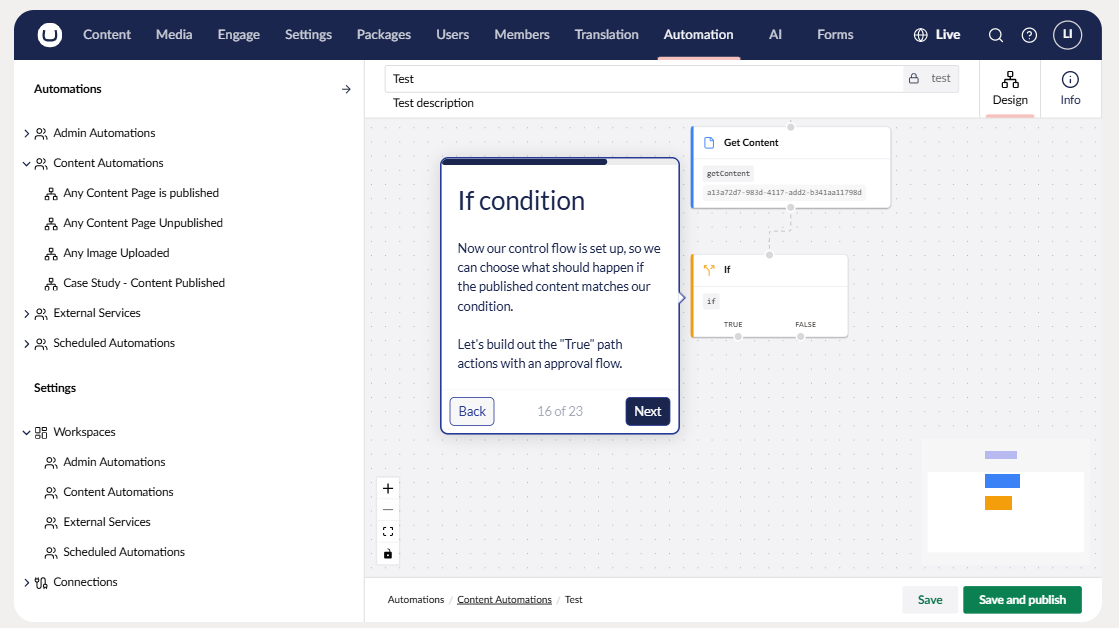
Human approval: when does a flow wait for a colleague?
Request Approval introduces an explicit decision point. The tour explains that the run does not continue beyond it without human approval. This is useful before consequential actions such as sending data or changing publication status. Define who may approve and what should happen after rejection or no response.
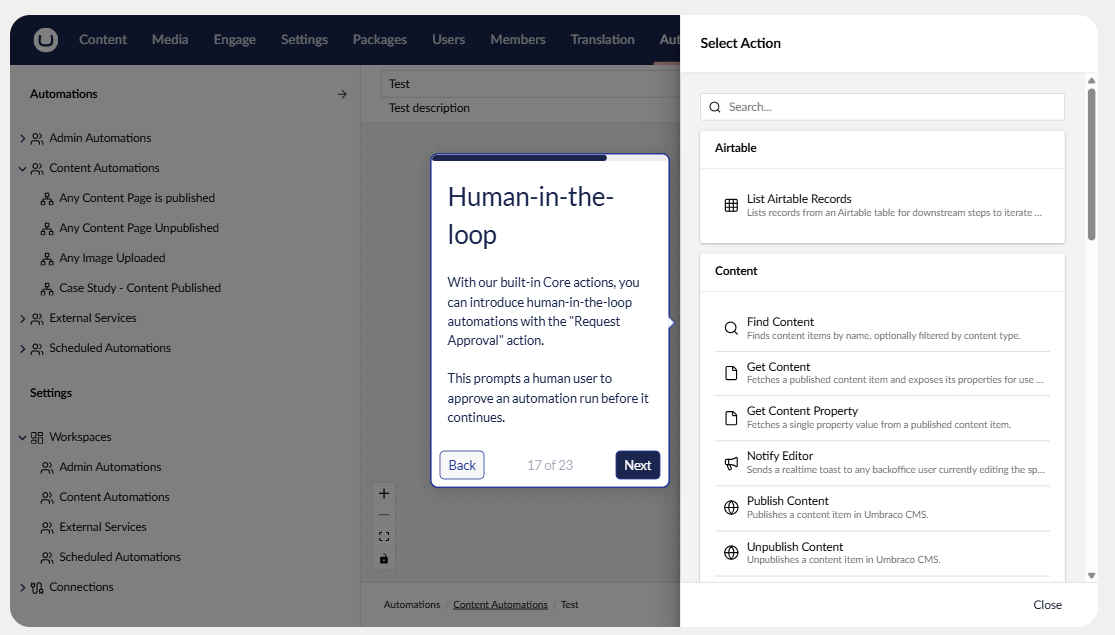
The next screenshot shows Request Approval on the canvas, connected to the True output of If. This route waits at the configured decision point. The example intends to send data to an external system after approval; that sending action has not yet been added here.
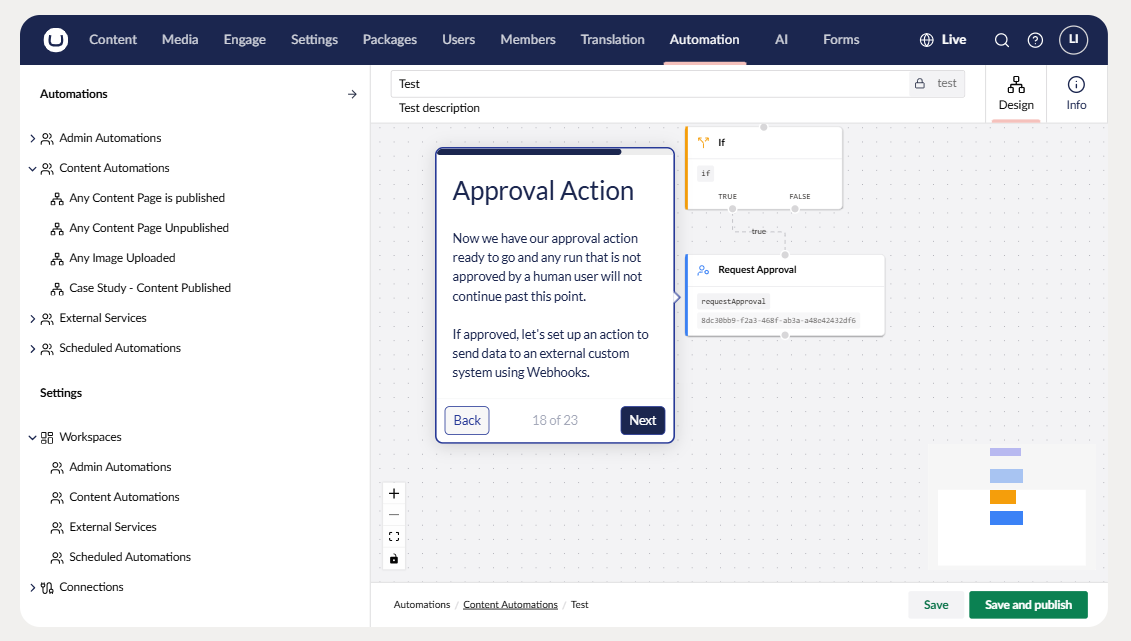
External systems: how do HTTP requests and webhooks work?
Alongside actions using Connections, the tour describes HTTP Request for calling an external endpoint such as a webhook. A preconfigured service-specific Connection is not always required. The target address, method, authentication and outgoing data still need configuration.
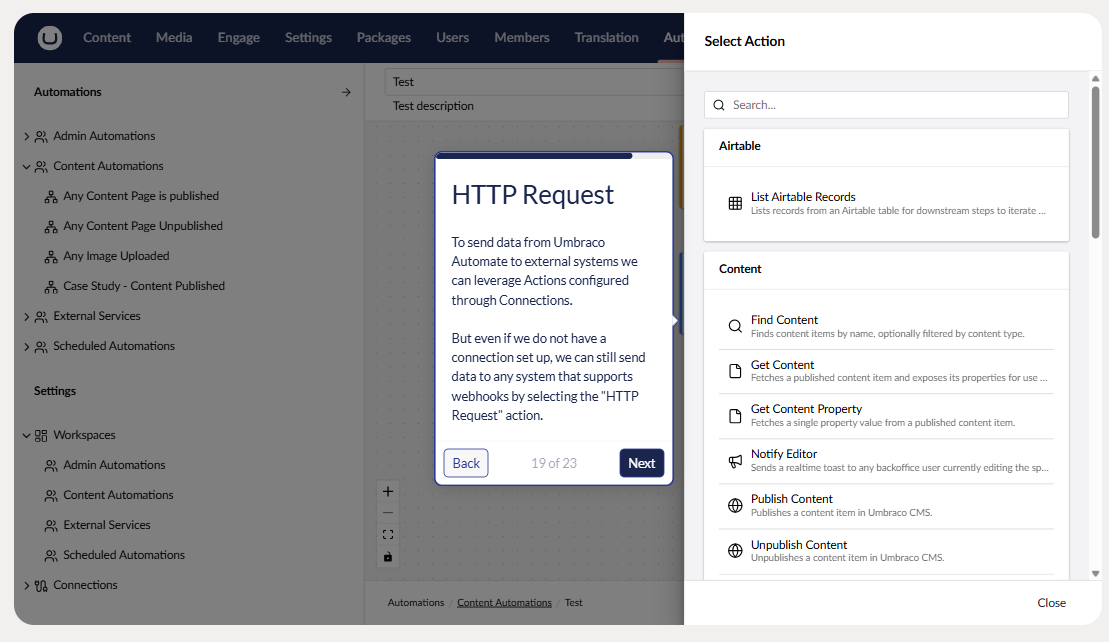
The example forms a recognisable chain: publication event → retrieve content → culture condition → human approval → planned external transmission. Define the data the external system needs, secure the connection, and handle failures and retries to avoid duplicate processing.
Which Umbraco components work with Automate?
| Component | Role | Consideration |
|---|---|---|
| CMS | Content, media and member events. | Choose actions and prevent self-triggering loops. |
| Forms | Respond to a form submission. | Requires Forms and its matching Automate package. |
| Commerce | Order created, finalised or status changed. | Validate payment state, repeatability and duplicates. |
| Engage | Respond to persona or experiment events. | Assess consent and installed versions. |
| AI & external services | AI actions, Slack or other HTTP integrations. | Configure add-ons, access and service fees separately. |
CMS
- Role
- Content, media and member events.
- Consideration
- Choose actions and prevent self-triggering loops.
Forms
- Role
- Respond to a form submission.
- Consideration
- Requires Forms and its matching Automate package.
Commerce
- Role
- Order created, finalised or status changed.
- Consideration
- Validate payment state, repeatability and duplicates.
Engage
- Role
- Respond to persona or experiment events.
- Consideration
- Assess consent and installed versions.
AI & external services
- Role
- AI actions, Slack or other HTTP integrations.
- Consideration
- Configure add-ons, access and service fees separately.
Which processes are a good fit?
- Follow up requests: receive a form, validate data, send confirmation and notify a colleague.
- Hand over orders: send a finalised order to logistics with failure notification.
- Assist content: generate an AI draft summary and require human review before publishing.
These are illustrative scenarios, not existing customer implementation claims. Steps available without development depend on installed modules, actions and integrations.
How does Automate differ from Workflow and Compose?
Umbraco Workflow focuses on editorial approval and publishing. Automate is broader: events initiate actions inside the CMS and connected services. Compose combines data and delivers it through GraphQL. These products can complement one another but are not interchangeable. See Umbraco Compose.
How do you govern access, privacy and failures?
- Use workspaces and least privilege; manage service credentials through connections.
- Document data sent to email, Slack, CRM or AI providers. Running in the CMS does not mean data never leaves it.
- Minimise sensitive run-history data and define retention.
- Design error handling and retries and prevent duplicate orders or emails.
- Require human review for important AI outputs and risky actions. Test failures and unexpected input.
Is Automate free and unlimited?
Umbraco positions Automate as open source without product limits on runs, triggers, actions or users. This does not guarantee unlimited server capacity or zero costs. Implementation, hosting, maintenance, email, AI and external services may incur charges. Verify compatibility and the selected package licence in the Marketplace.
Perplex in practice
Start with the process, then configure
Perplex can help define data sources, integrations and responsibilities. Start with one measurable scenario, validate its technical behaviour and agree operational ownership before expanding.
Frequently asked questions
Do we need an external automation platform?
Not for the engine itself; it runs in Umbraco. Individual actions may use external services.
Can marketers edit processes?
Yes, using available triggers and actions within their permissions. New integrations or complex logic may need development.
Are all DXP integrations included in the core?
No. Documentation describes additional packages for Forms, Commerce, Engage and AI. Check each package’s requirements.
Does all data automatically stay in our environment?
No. The engine runs with the CMS, but external actions may transmit data. Assess each flow.
Does Automate replace human oversight?
No. Approval steps, access controls and testing remain important, especially for AI content and consequential actions.
Sources and currency
Technical and legal statements on this page are based on primary documentation. Prices, versions and features change; always check the current source before making a decision.
- 1Umbraco Automate product informationUmbraco
- 2Umbraco Automate documentationUmbraco Docs
- 3Umbraco Automate MarketplaceUmbraco Marketplace
- Content last reviewed
- Published
- Author
- Perplex Digital — Umbraco Contributing Platinum Partner
Points of attention for this page
- Verify current versions, package requirements, terms and data location for your deployment.
- Examples are illustrative; no customer outcomes or fixed costs are promised.
Read next
Relevant services
Umbraco Automate for your organisation?
Discuss your systems and goals. We identify configuration, integration and maintenance needs.